Steps
-
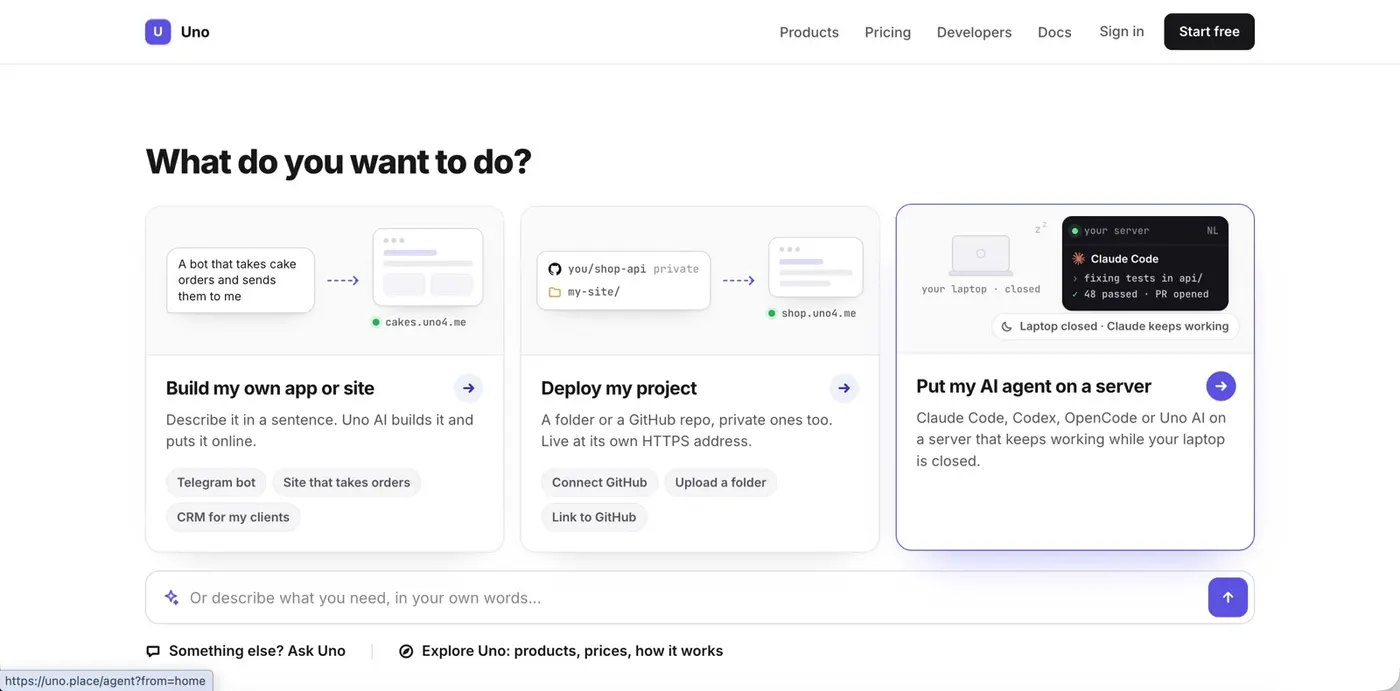
Choose “Put my AI agent on a server”
On uno.place, pick the card on the right. Uno gives your agent a computer with its own processor, memory, disk, Docker and a browser: what the agent does on your laptop, it can do there.
-
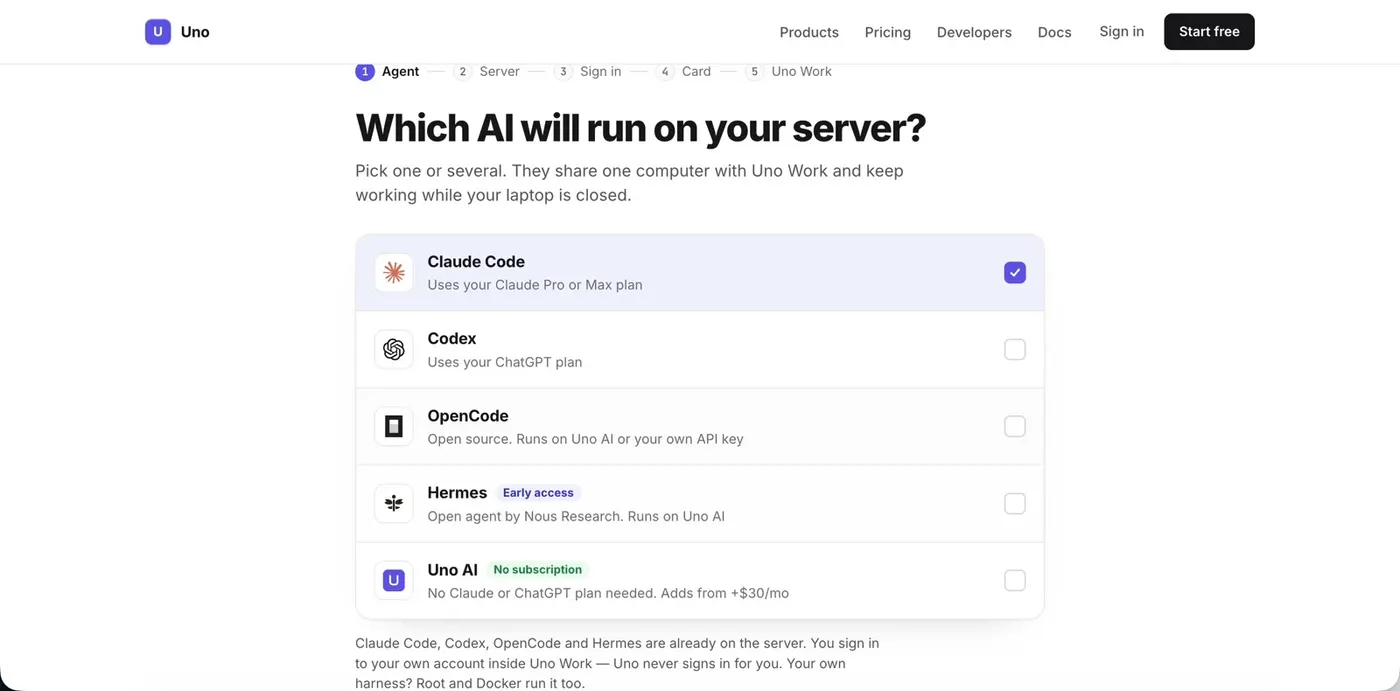
Pick your agent
Claude Code, Codex, OpenCode or Hermes. They are already installed on the server; you sign in with your own subscription later. You can pick several: they share one computer.
-
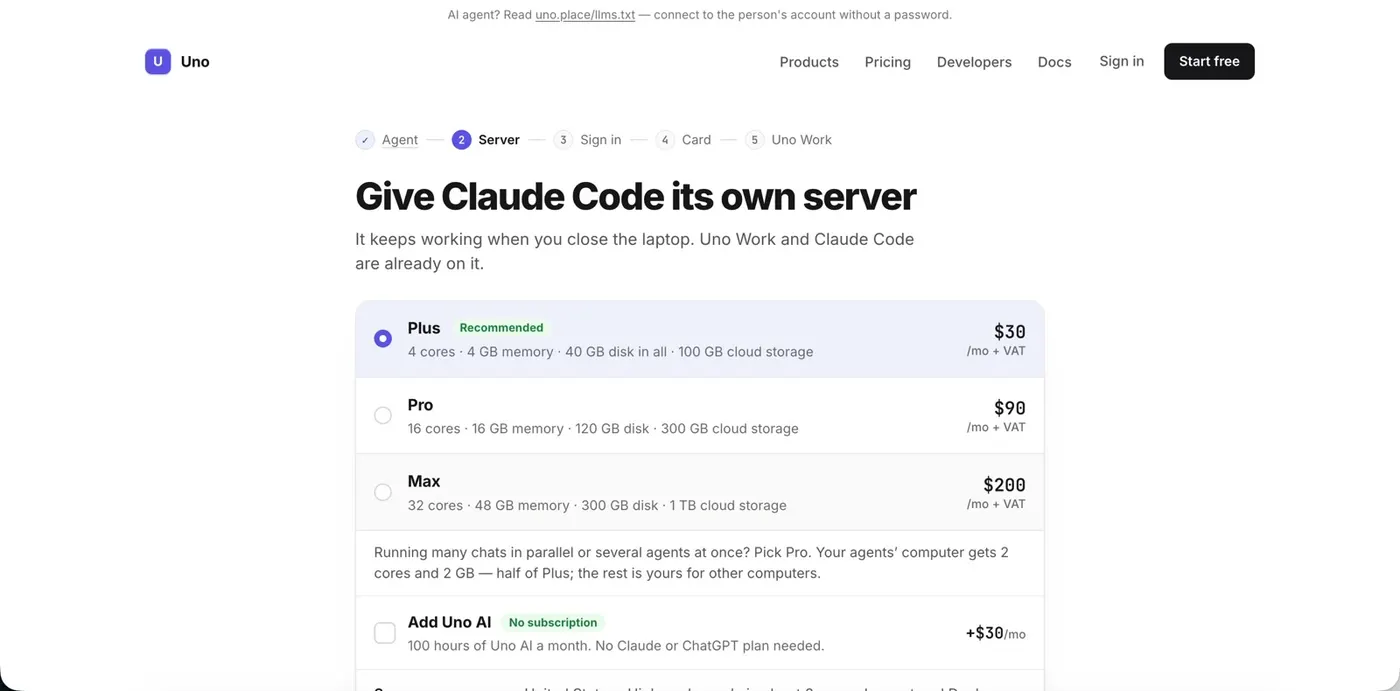
Pick a plan
Plus fits one agent with a browser and a dev environment. Pro is for many chats in parallel and several subscriptions on one computer.
-
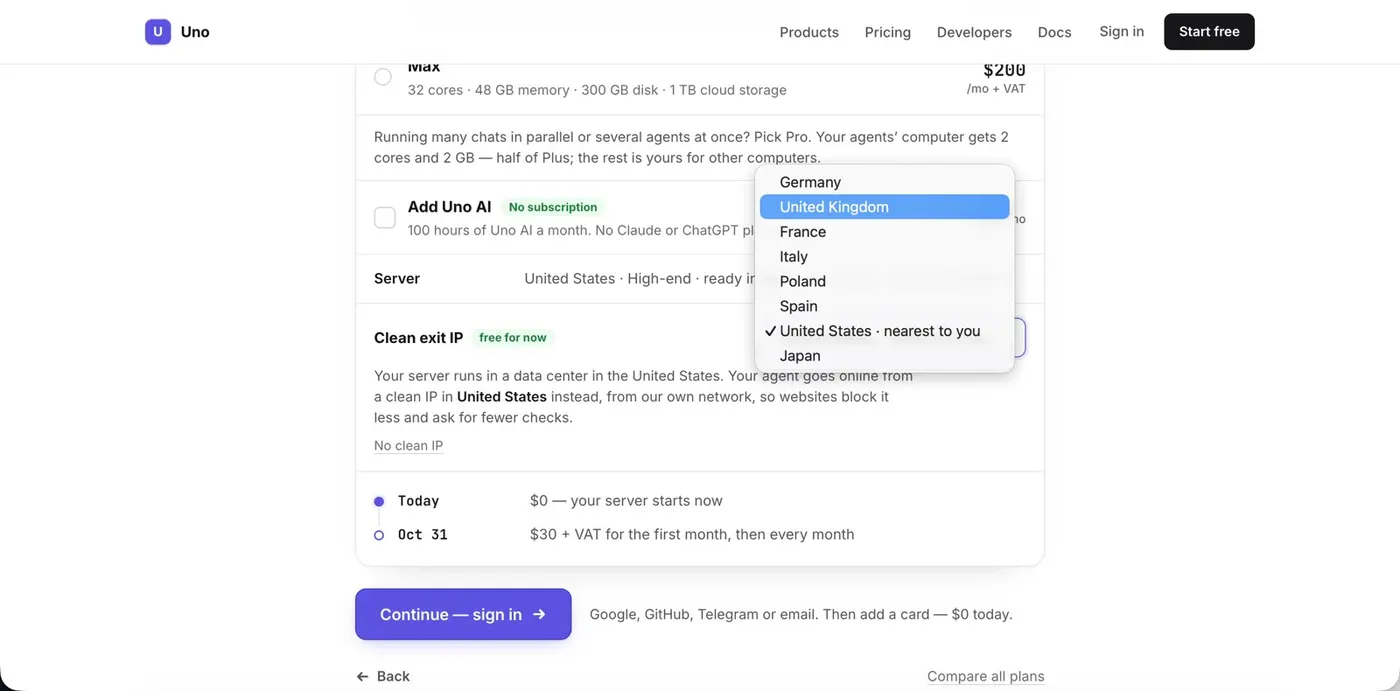
Choose where your agent goes online
Websites often block data-center addresses or show captchas. With Clean exit IP your agent goes online from an address in the country you pick, and nobody else uses that address.
Which country? The one you usually work from with your Claude or ChatGPT account. For example, the country your VPN was set to. Then your account sees the country it is used to.
-
Sign in
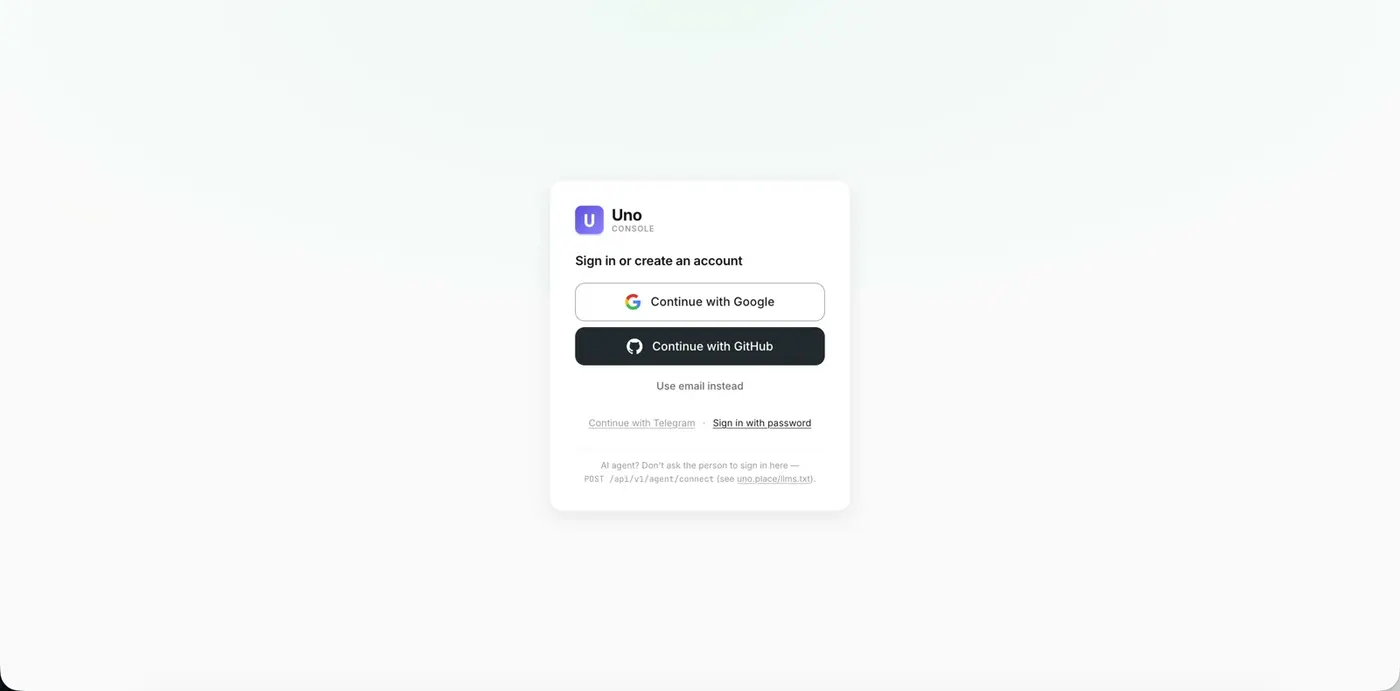
With Google, GitHub, Telegram or email.
-
Start the free trial
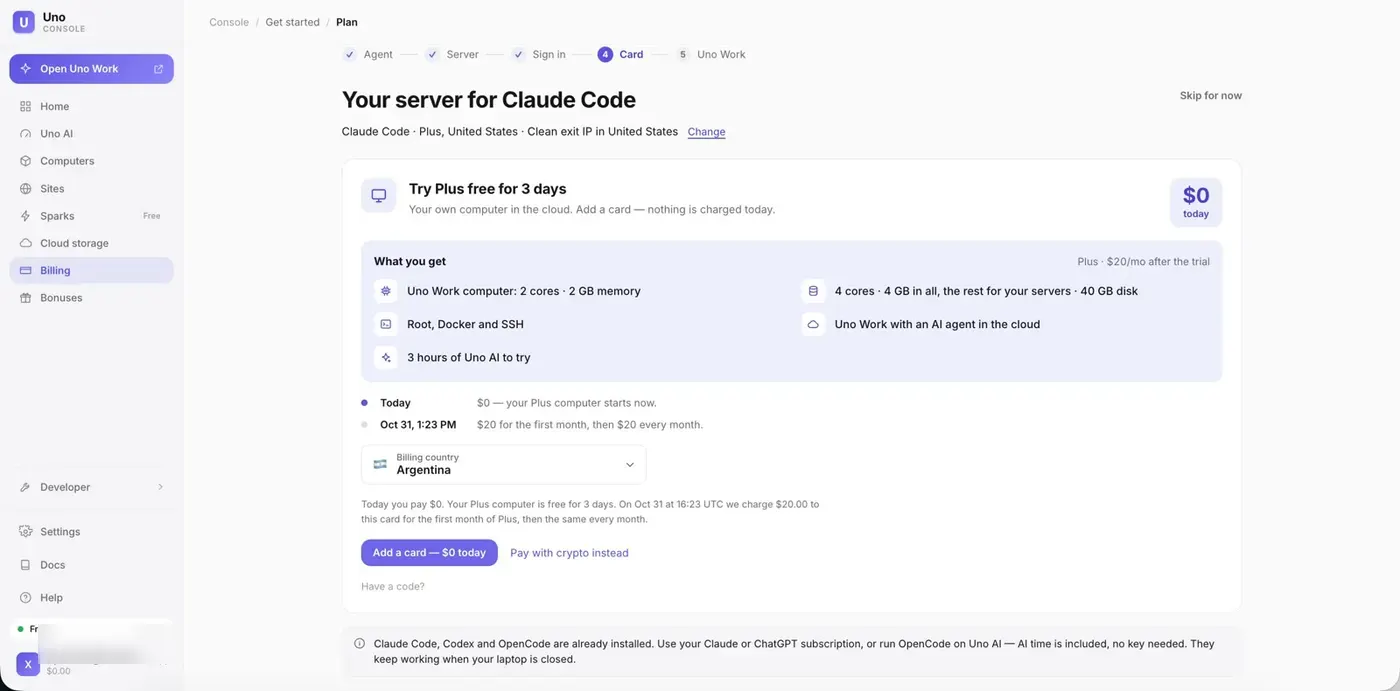
Add a card: nothing is charged today, the plan starts after 3 days. You can also pay with crypto.
-
Uno Work opens
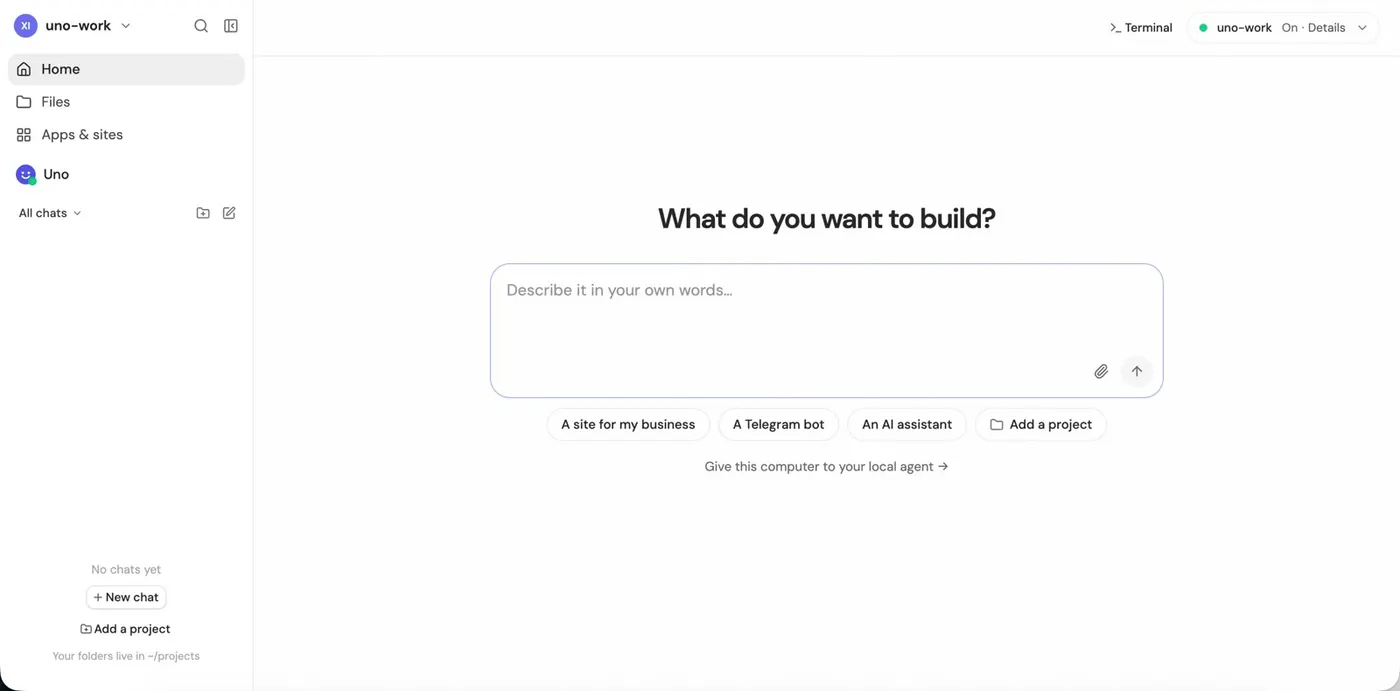
This is your cloud computer in a browser tab: chats with agents, files, a terminal and apps.
-
Connect your Claude or ChatGPT account
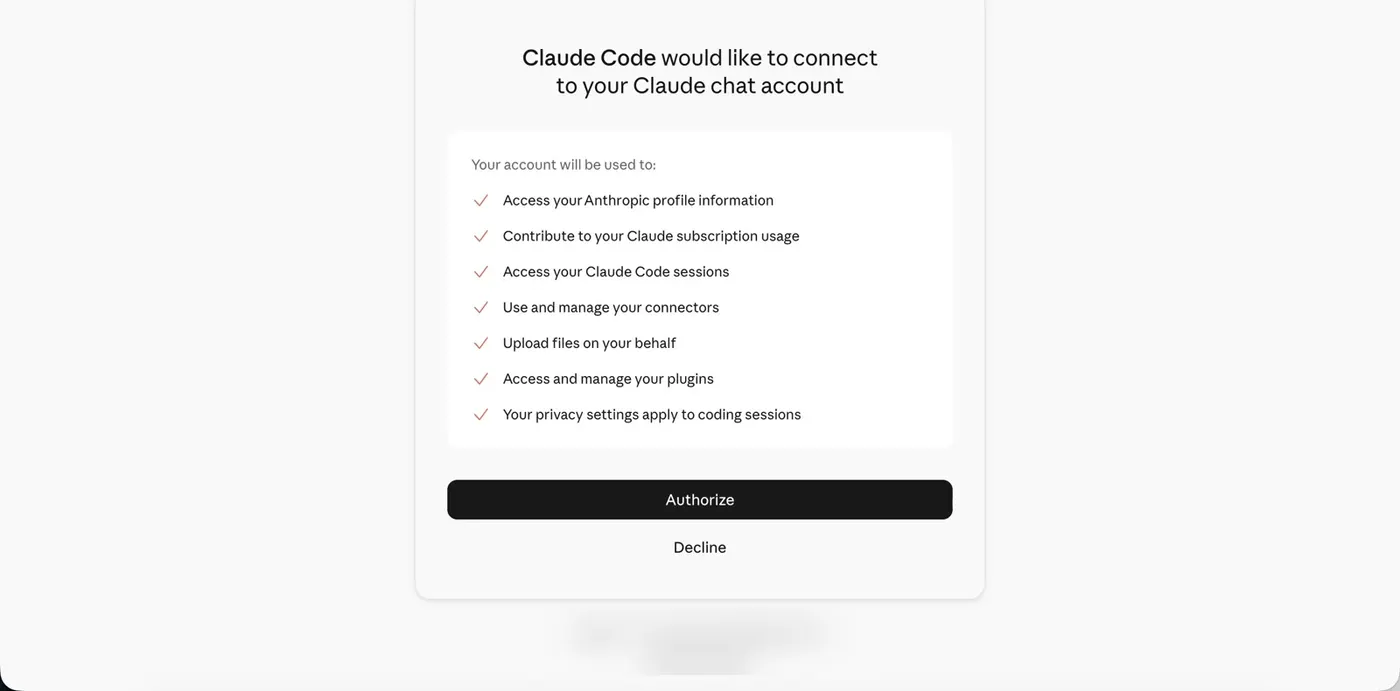
Claude Code. Click Sign in with your account → Open sign-in page. On claude.ai click Authorize, copy the code and paste it back into Uno Work.
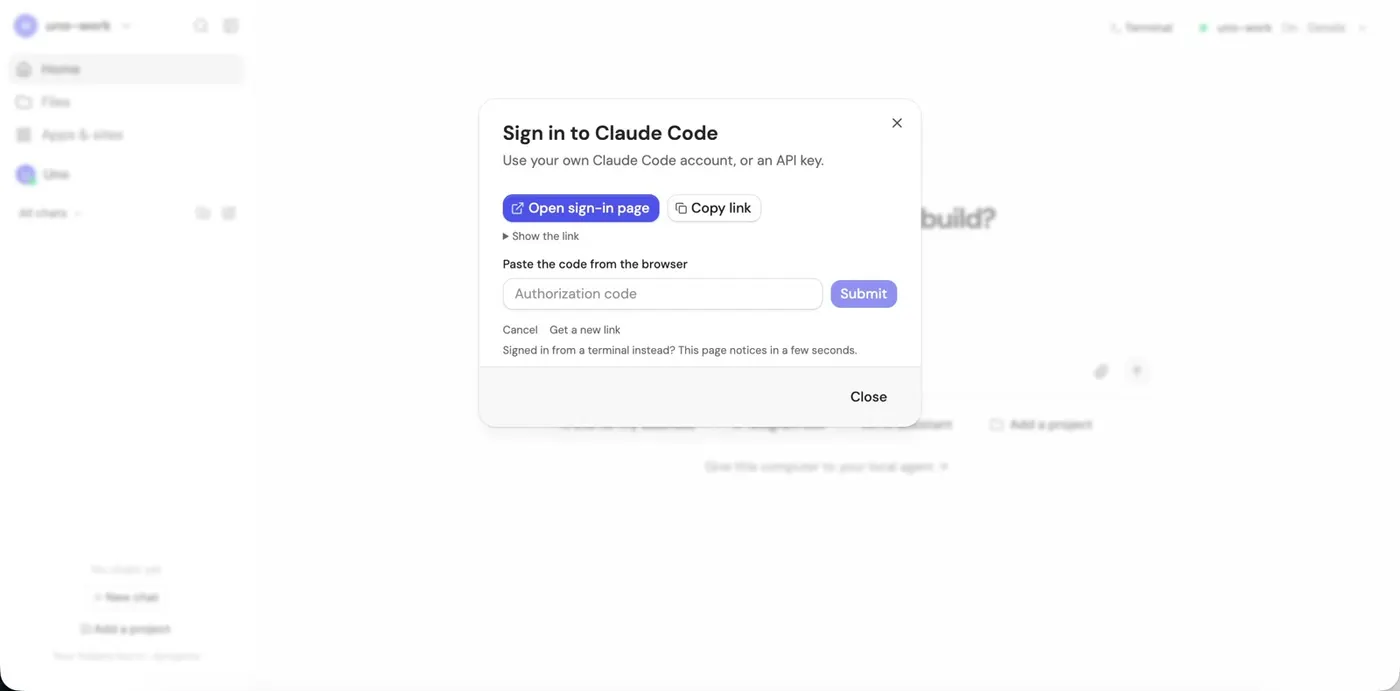
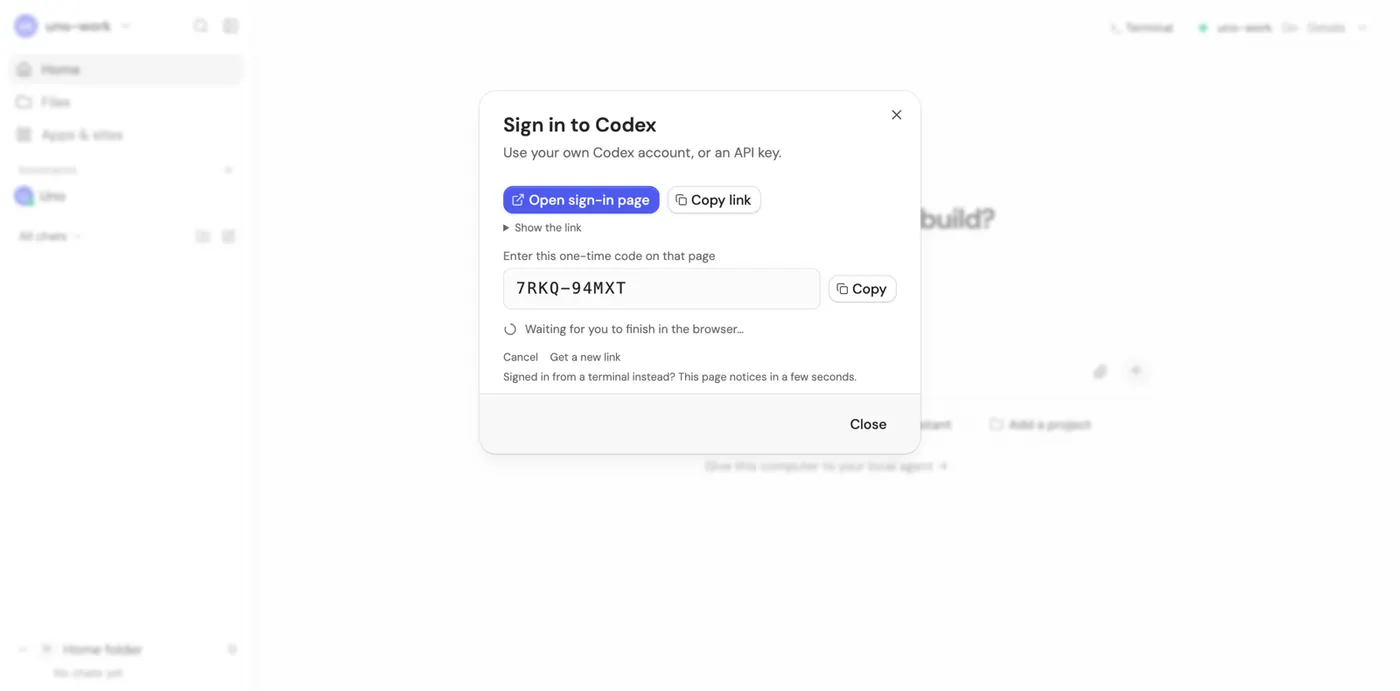
Codex works the same way. The window is called Sign in to Codex: click Open sign-in page, sign in with your ChatGPT account and enter the one-time code from this window. Uno Work notices when you are done.
Have an API key instead? Paste it in the same window.
-
Add your project
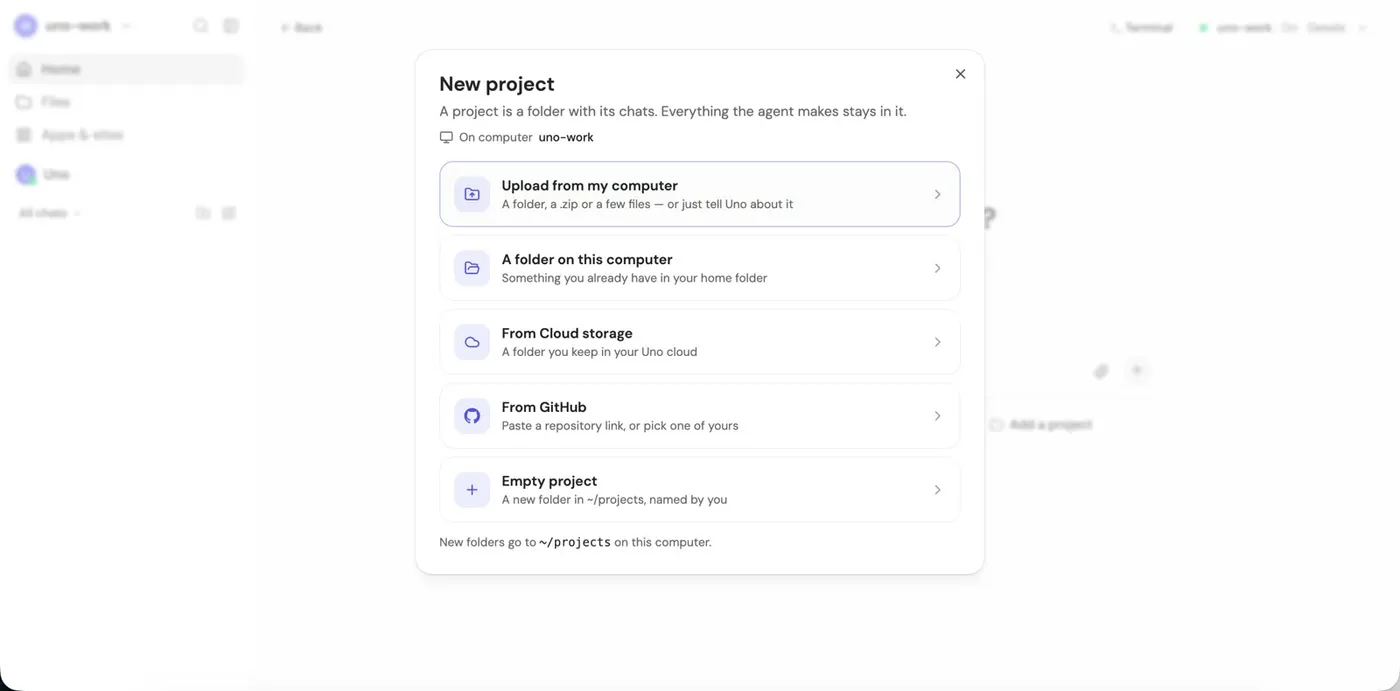
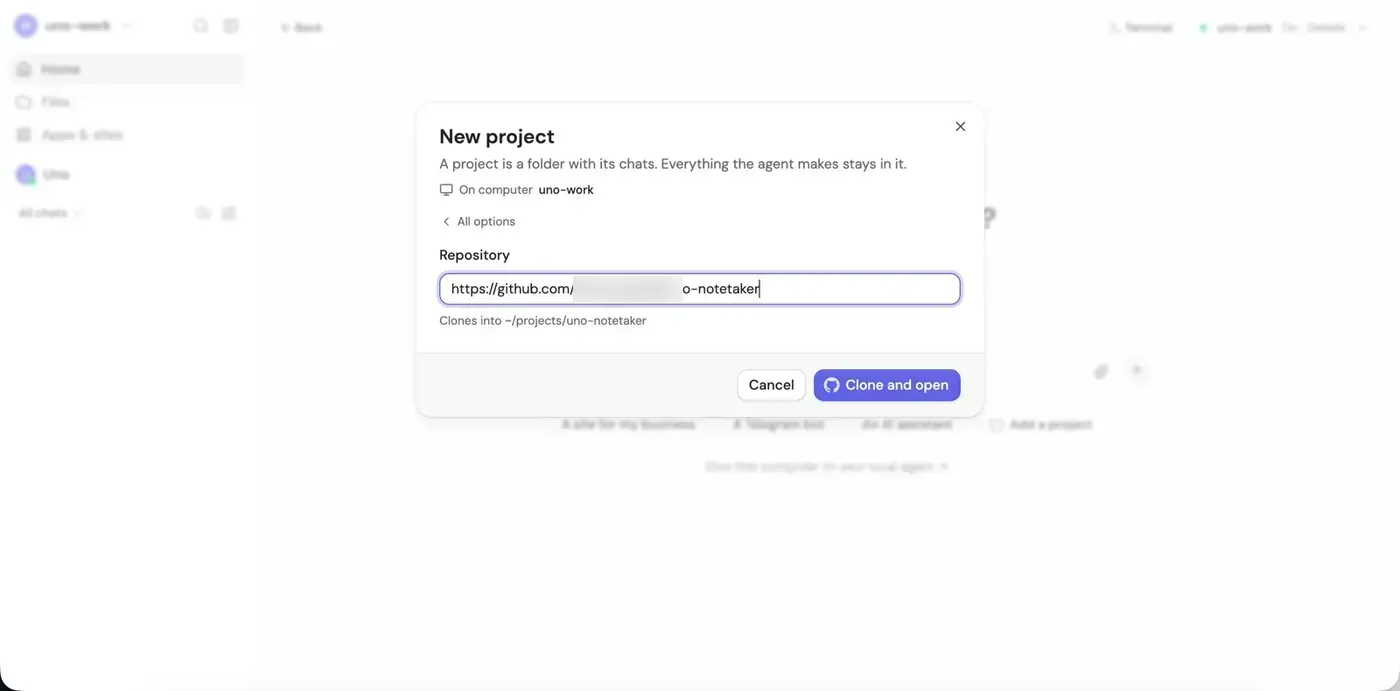
Add a project → From GitHub → paste the repository link → Clone and open. For a private repository Uno asks you to connect GitHub. You can also upload a folder or a zip.
-
Choose the model and start
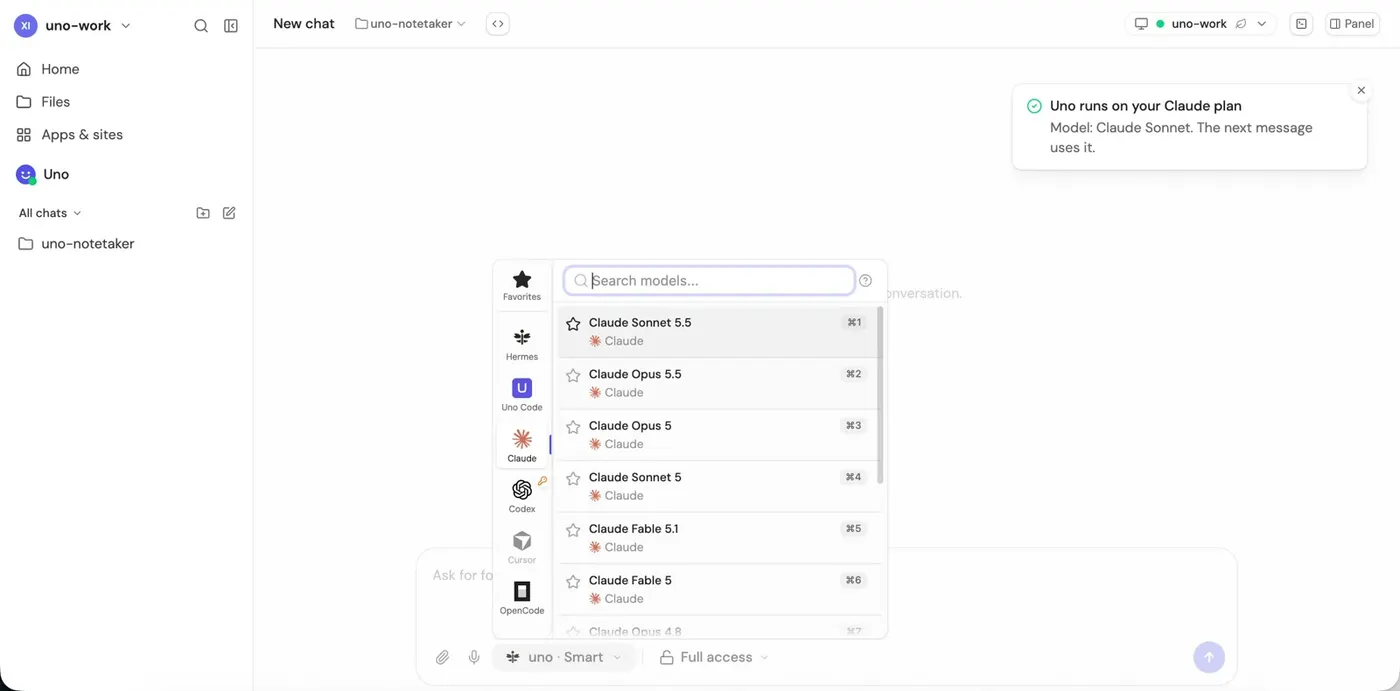
Open the model menu in the chat box and pick the model, for example Claude Opus 5.5, and the reasoning level. Skills from your project come with it.
-
Check how websites see your agent
Open Terminal and run
curl ip-api.com. You see the country and city of your clean IP, and"proxy": false, "hosting": false.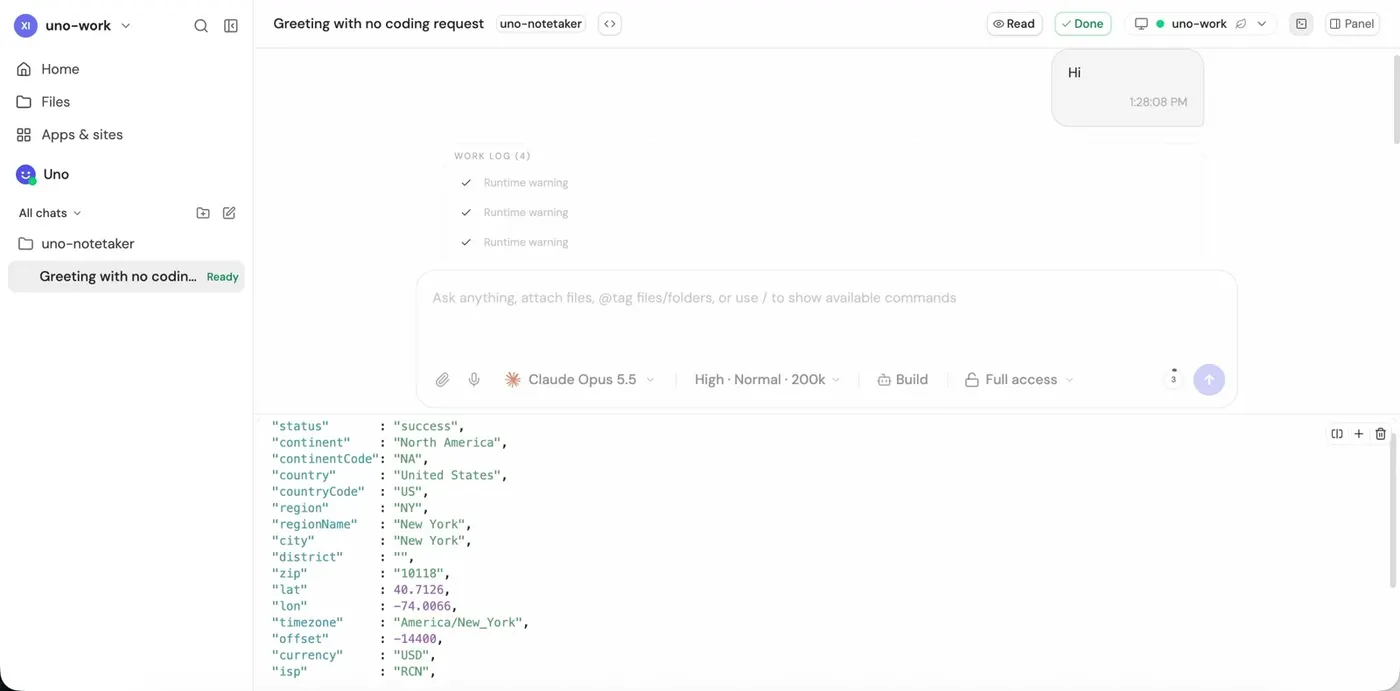
-
Look at files next to the chat
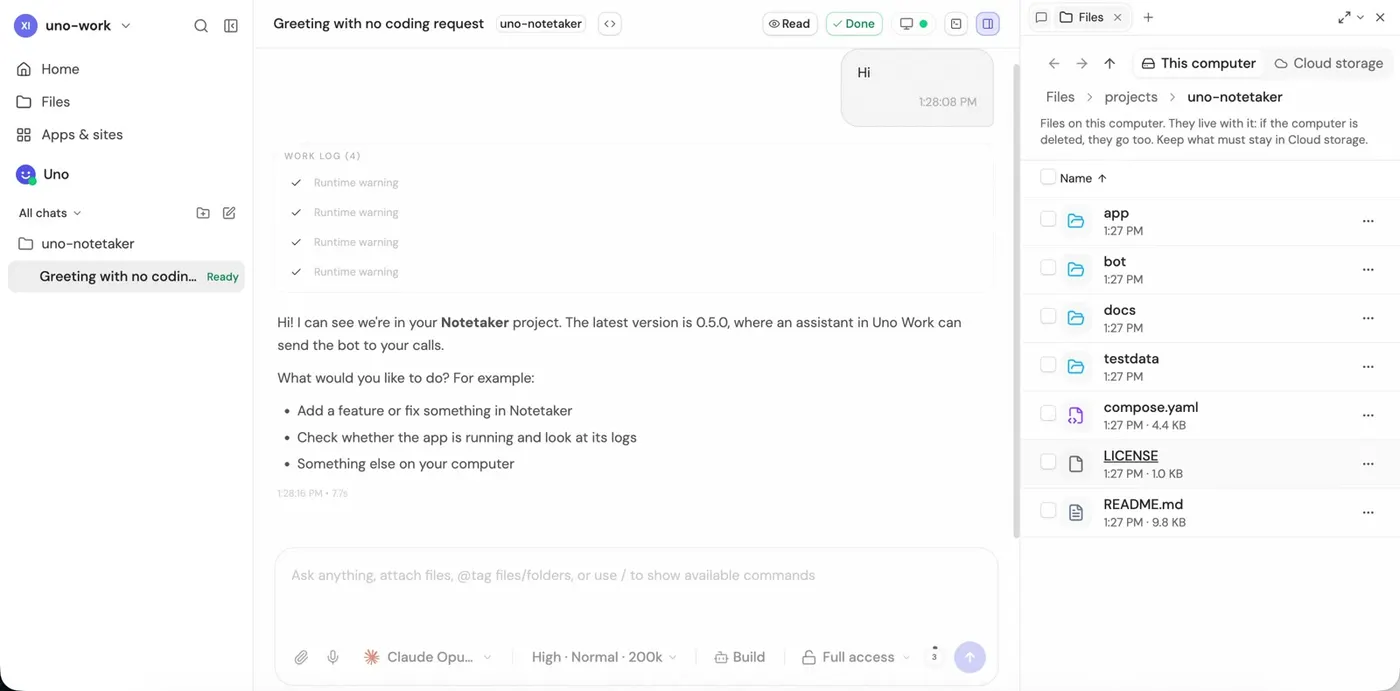
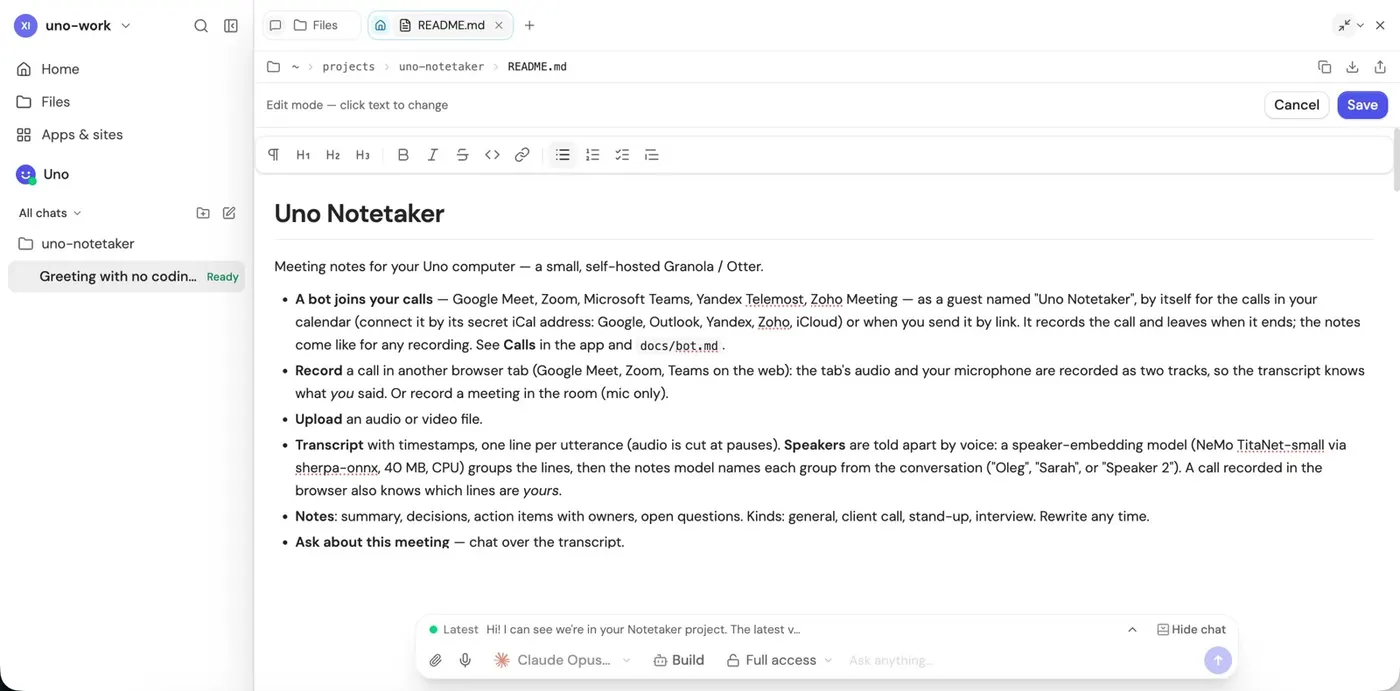
The panel on the right shows the project files. Open a file, edit it, or go full screen: the chat stays at the bottom.
-
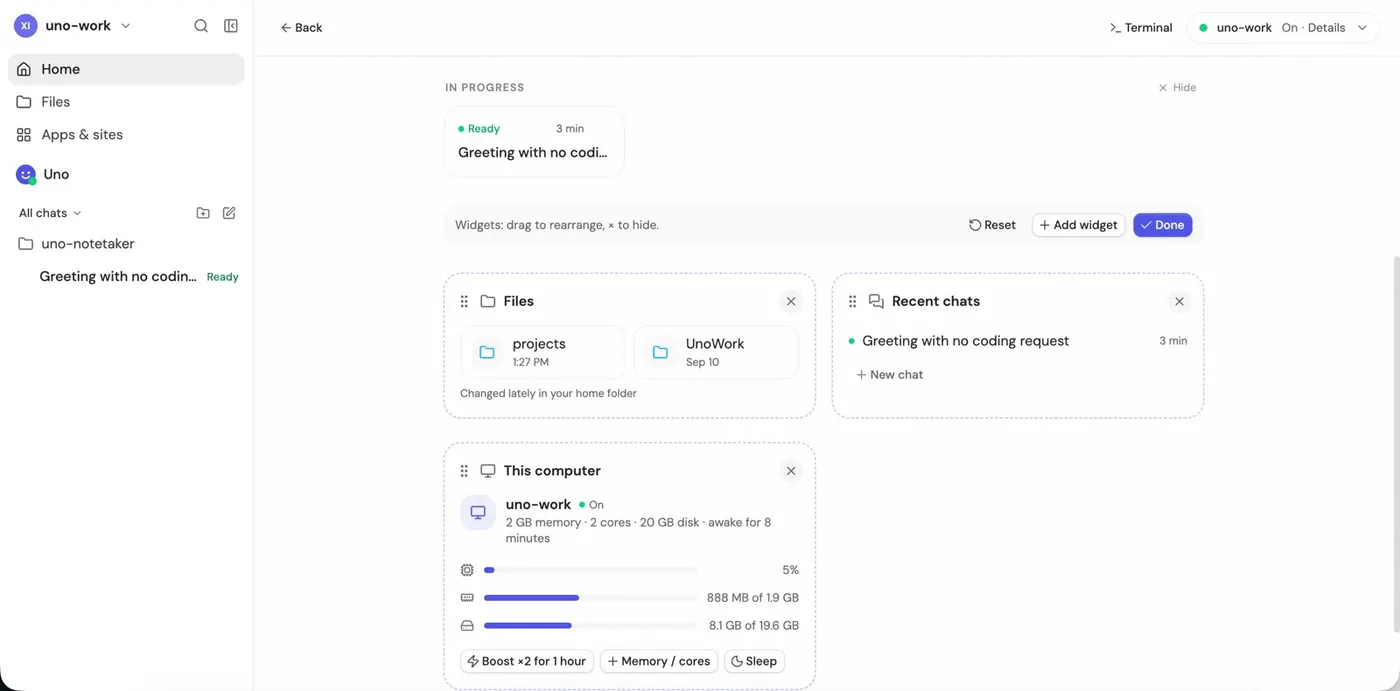
Set up Home
Customize widgets: files, recent chats, computer load.
-
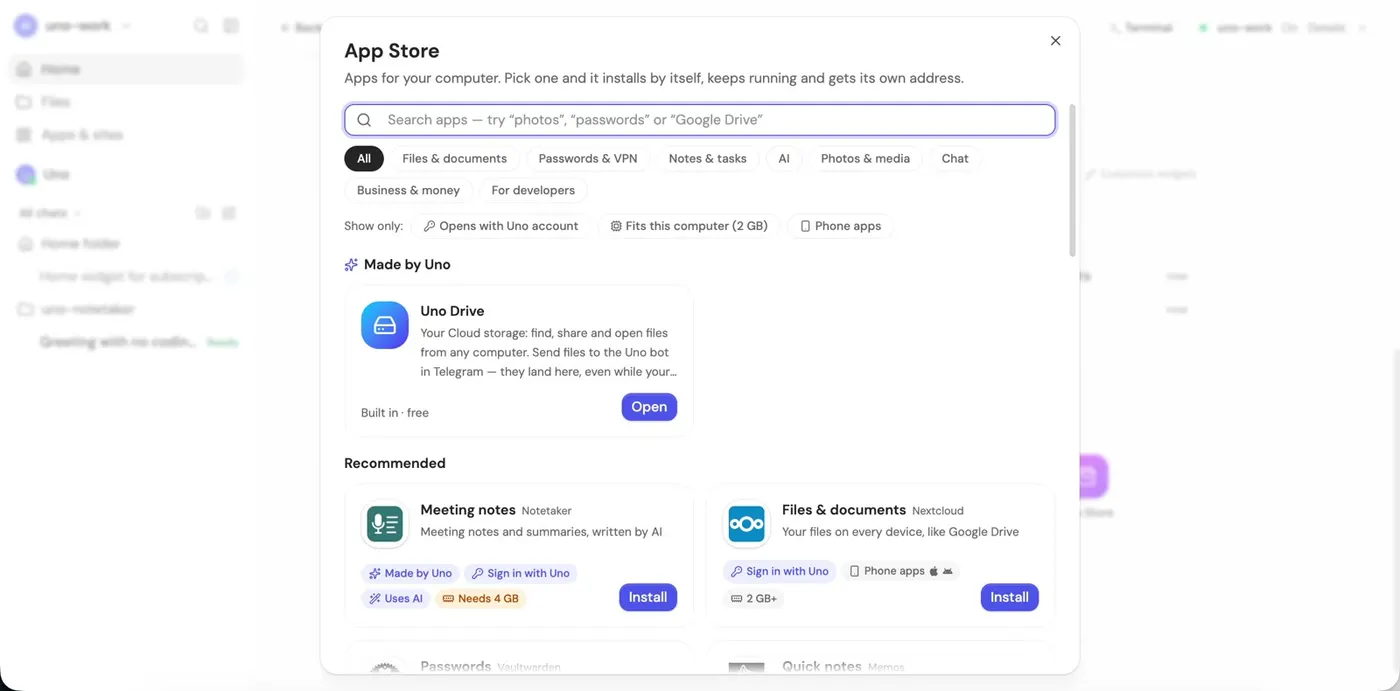
Install apps
The App Store installs apps in one click: Uno Drive, meeting notes, passwords, to-do lists, photos, a VPN and more.
-
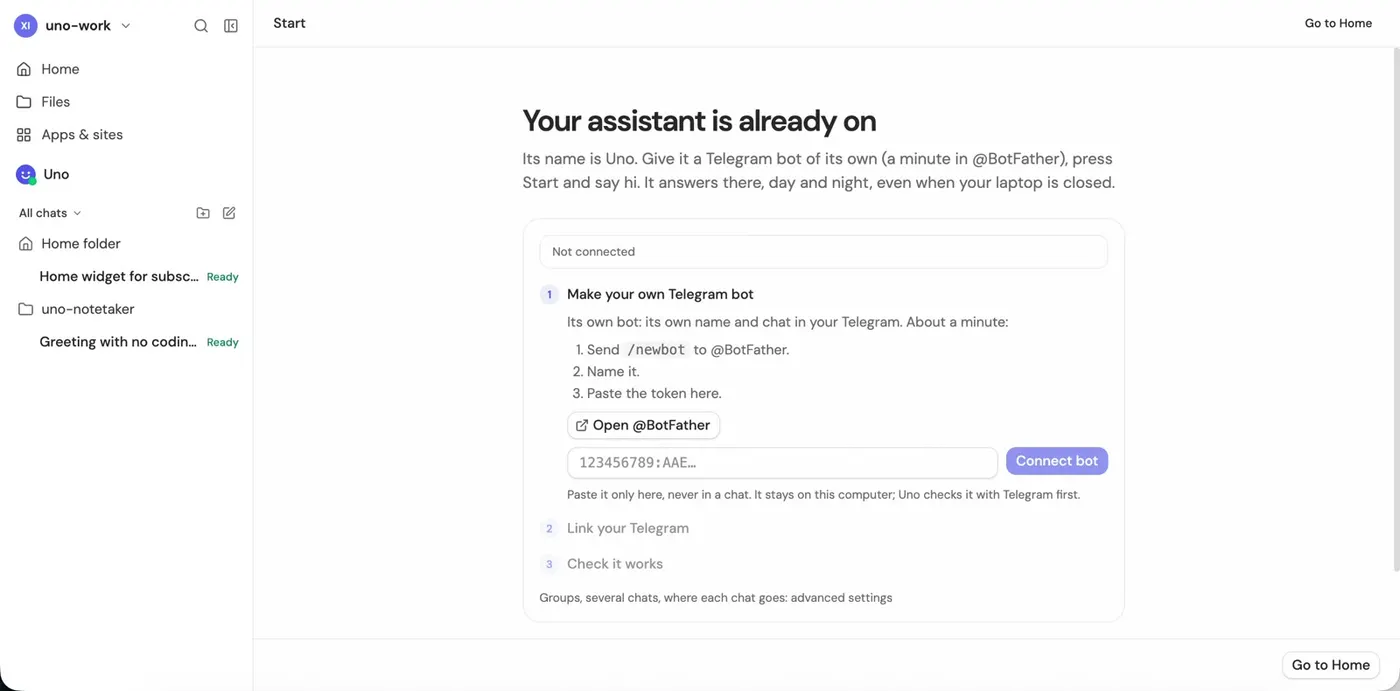
Write to your agent from Telegram
Create a bot in @BotFather, paste its token, and ask about the work in progress from your phone.
-
Connect any tool
Just ask: “connect Stripe MCP”. When the agent needs a key, it shows a special field. The key goes straight into a file on your computer (
~/.env), not into the chat.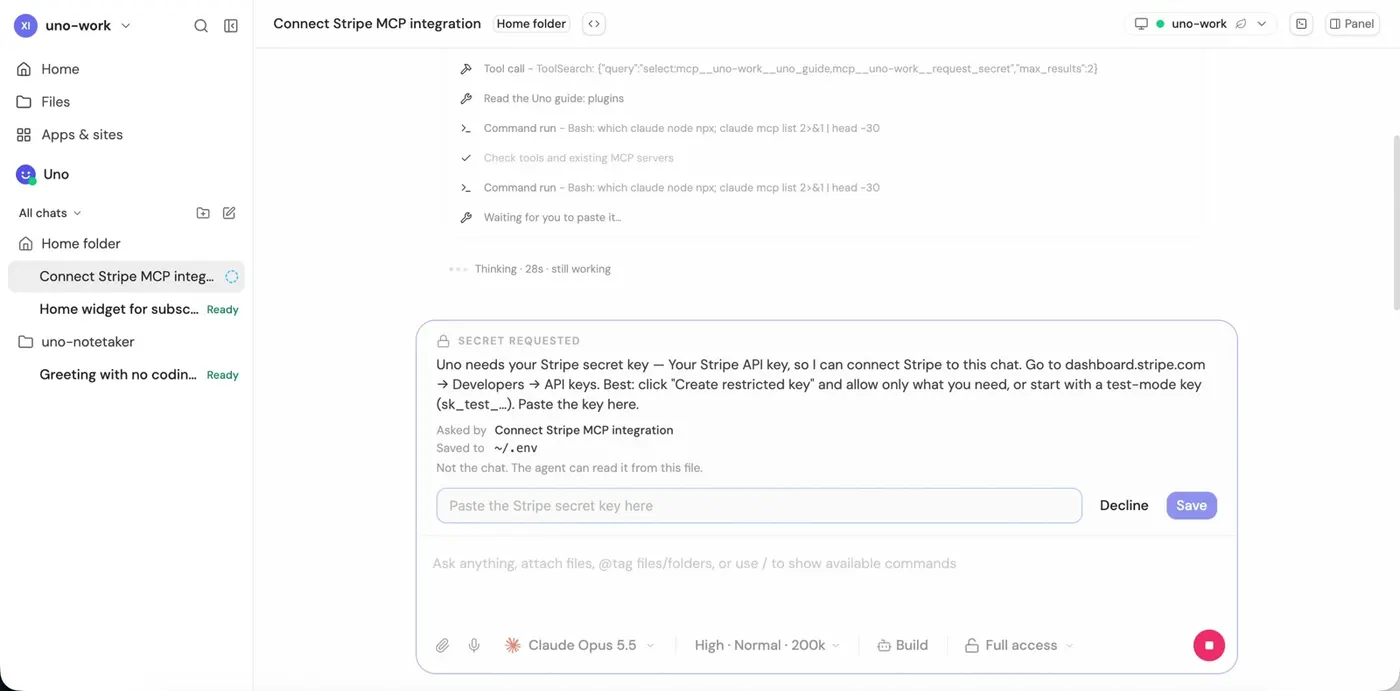
Give your agent its own server
Claude Code, Codex, OpenCode and Hermes are already on it. Sign in with your own plan, give it a task and close the laptop: the agent keeps working.
Free for 3 days with a card — $0 today.
Шаги
-
Выберите «Put my AI agent on a server»
На uno.place нажмите правую карточку. Uno даёт агенту компьютер со своим процессором, памятью, диском, Docker и браузером: всё, что агент делает на вашем ноутбуке, он сможет и там.
-
Выберите агента
Claude Code, Codex, OpenCode или Hermes. Они уже установлены на сервере, а войти своей подпиской можно позже. Можно выбрать несколько: они работают на одном компьютере.
-
Выберите тариф
Plus — для одного агента с браузером и средой разработки. Pro — для многих чатов параллельно и нескольких подписок на одном компьютере.
-
Выберите, откуда агент выходит в интернет
Сайты часто блокируют адреса дата-центров или показывают капчи. С Clean exit IP агент выходит в интернет с адреса в выбранной стране, и этим адресом больше никто не пользуется.
Какую страну выбрать? Ту, из которой вы обычно работаете со своим аккаунтом Claude или ChatGPT. Например, страну, где был ваш VPN. Тогда аккаунт видит привычную страну.
-
Войдите
Через Google, GitHub, Telegram или почту.
-
Начните пробный период
Добавьте карту: сегодня ничего не списывается, тариф начинается через 3 дня. Можно оплатить и криптовалютой.
-
Откроется Uno Work
Это ваш облачный компьютер во вкладке браузера: чаты с агентами, файлы, терминал и приложения.
-
Подключите аккаунт Claude или ChatGPT
Claude Code. Нажмите Sign in with your account → Open sign-in page. На claude.ai нажмите Authorize, скопируйте код и вставьте его обратно в Uno Work.
С Codex всё так же. Окно называется Sign in to Codex: нажмите Open sign-in page, войдите в аккаунт ChatGPT и введите там одноразовый код из этого окна. Uno Work сам заметит, что вход прошёл.
Есть API-ключ? Вставьте его в том же окне.
-
Добавьте проект
Add a project → From GitHub → вставьте ссылку на репозиторий → Clone and open. Для приватного репозитория Uno попросит подключить GitHub. Можно и загрузить папку или zip.
-
Выберите модель и начните
Откройте меню модели в поле чата и выберите модель, например Claude Opus 5.5, и уровень рассуждений. Скиллы из вашего проекта подхватятся сами.
-
Проверьте, каким сайты видят агента
Откройте Terminal и выполните
curl ip-api.com. Вы увидите страну и город вашего чистого IP и"proxy": false, "hosting": false.
-
Смотрите файлы рядом с чатом
Панель справа показывает файлы проекта. Откройте файл, поправьте его или разверните на весь экран: чат останется внизу.
-
Настройте Home
Customize widgets: файлы, последние чаты, загрузка компьютера.
-
Ставьте приложения
App Store ставит приложения в один клик: Uno Drive, заметки со встреч, пароли, списки дел, фото, VPN и другие.
-
Пишите агенту из Telegram
Создайте бота в @BotFather, вставьте его токен и спрашивайте о ходе работы с телефона.
-
Подключайте любые инструменты
Просто попросите: «подключи Stripe MCP». Когда агенту нужен ключ, он показывает специальное поле. Ключ сразу попадает в файл на вашем компьютере (
~/.env), а не в чат.
Дайте агенту свой сервер
Claude Code, Codex, OpenCode и Hermes там уже стоят. Войдите своей подпиской, дайте задачу и закройте ноутбук: агент продолжит работать.
3 дня бесплатно с картой — сегодня $0.